Showing posts with label news. Show all posts

Friday, May 1, 2015

How to Prevent Phishing Attacks with Google's Alert Tool


How to Prevent Phishing Attacks with Google’s Alert Tool


Google has created a new security tool that’s aimed to thwart phishing attacks. The free Chrome extension keeps track of where you enter your Google account password, and will alert you when you’ve entered it somewhere other than accounts.google.com.
If you’re not familiar with phishing, its when a shady operation poses as a legitimate company like your bank, and sends you an email, that looks like the real deal, and it directs you to a site that looks equally legit. Then has you enter in sensitive personal information such as your account number, password, or social security number.
For instance, you could get an email from some third-party claiming to be Google, the email looks legit, with the company logo, and professional language, and it gives you a link where you need to change your password. When you click that link, instead of going to the real Google, it goes to a nefarious site that steals your information.
This tool will alert you when your Gmail or Google for Work password is entered anywhere other than account.google.com. It also tried to detect fake Google sign-in pages and alert you before you enter your password.

Google Alert Chrome Extension

Setting this up is a piece of cake, and does add an extra layer of security to your account data. Download the Password Alert extension from the Chrome Web Store.
Google Password Alert Extension
After it installs, you’ll be prompted to enter your Google account credentials. After that, it will start monitoring where you enter your Google account, and help prevent phishing attacks before it’s too late.
For more information, you can read the full FAQ page here.
Alert Page
Remember, this is an extra tool to help keep your Google account protected, but for the best protection of your account, make sure and enable Two-Factor Authentication (2FA).
For more on 2FA, Stay Tuned.

Thursday, June 6, 2013

News : Windows 8.1 (New Features)

Windows 8.1: News and features


Windows 8.1 will be released for public preview at Microsoft's Build conference on 26 June. Here we reveal the new features, screenshots and videos of the first major update to Windows 8.
Windows 8.1 is the first update to be released under the new "Windows Blue" scheme, and will mark a shift to annual updates, similar to how Apple releases versions of OS X.


Change log

This feature was updated on 5 June 2013 with confirmation of several new features from Microsoft and a new video Frank X Shaw, Microsoft's corporate vice-president of communications, said the "continuous development cycle" introduced by Windows 8.1 will become "the new normal across Microsoft", confirming the update model will apply to products beyond Windows 8 and RT, including Windows Phone and Server.
Windows 8.1 will be a free update available from the Windows Store, for both Windows 8 and Windows RT.


New features video

Microsoft has provided a brief video overview of some of the new features in Windows 8.1, which we've embedded below. Click here to watch the Windows 8.1 preview video if you can't see it below.

Start button returns

Developer builds of Windows 8.1 have confirmed that the much-missed desktop Start button will return - although not in the form many have hoped for.
The Windows logo will now appear in the bottom left-hand corner of the desktop, sporting exactly the same appearance and behaviors as the Start charm that zooms in from the right-hand side of the screen. In fact, leaked screenshots look almost identical to the Start 8 add-on created by Stardock (pictured below).
ModernMix
Pressing the Start button on the desktop will simply send users back to the Windows 8 Start screen. It won't open an old-fashioned Start menu, like the one that comes with Start 8. However, reports suggest that users will be able to tweak the Start button to jump to the All Apps screen instead, which might make it slightly easier to find an application that's not already pinned to the task-bar.

Direct to desktop

Windows 8.1 will also feature an option to bypass the much-maligned tile-based Start Screen.
The new Start Screen has proven controversial, with many desktop and laptop users bemoaning the fact that they can't simply skip straight to the more mouse-and-keyboard friendly desktop of old.
According to Paul Thurrott's SuperSite for Windows, boot straight to desktop is included in developer builds of Windows 8.1, although not switched on by default.
The new "larger" desktop tile that appears on leaked builds of Windows 8.1 (see below) is a further indication that customers want easier access to the traditional desktop.

Start screen wallpaper and lock screen

Microsoft has confirmed that Windows 8.1 will allow users to set their own wallpaper on the Start screen. Currently, users are merely allowed to choose from a selection of preset "accents" and to select a colour scheme.
The Settings charm includes a new Personalize option that provides more granular control over the appearance of the Start menu backgrounds and colors, including the accent color of the Start charm itself.
Windows 8.1 also includes new "motion accents" - animated wallpapers that move as you scroll through the Start screen.
The lock screen can now be used as a digital photo frame, displaying a slideshow of images stored on the user's PC or in cloud services such as SkyDrive.

New tile sizes

Windows Blue

Windows 8.1 will offer support for more tile sizes. Windows 8 supports two - "smaller" and "larger" - but Blue throws another two sizes into the mix. App tiles can now be reduced down to thumbnail size, occupying only a quarter of the space an existing "smaller" tile occupies.
There’s also a new super-sized tile, the size of two of Windows 8’s "larger" tiles. This allows you to display more live information on tiles such as Mail and Weather, providing a detailed synopsis of recent messages in your inbox or a long-range weather forecast, for example.


Revamped search


Windows 8.1 unified search

One of the biggest criticisms of Windows 8 was that the search menu had been hobbled, only returning results for apps by default. Windows 8.1 reverts to a unified search menu, which as you can see from the screenshot above, returns results for apps, settings and files as you begin to type.

Search results will also be presented in a new screen, which Microsoft is rather cheesily dubbing "heroes". These provide a graphical, app-like screen that combines Wikipedia-style facts, previews of internet search results, images and videos, as well as relevant files stored on the PC itself.

Windows 8.1 search


Split-screen apps

Split screen in Windows Blue
Windows 8 allowed you to put two "Metro" apps on the same screen, but only with one at almost full-size and the other running down a thin strip. Blue now allows you to give both apps equal billing, in an echo of the familiar snap-to-edges style of the Windows desktop.


Internet Explorer 11

IE 11
A leaked Windows 8.1 build gave us the first sighting of Internet Explorer 11, in both Metro and desktop modes. The appearance of the browser remains largely identical in both versions, but there are a couple of intriguing new features.
The Settings menu in the Metro version of IE11 now includes a "Show synced tabs" option. This suggests Microsoft will allow users to synchronise tabs across devices, and possibly even from Windows Phone 8 devices, although the feature wasn’t functional in the leaked build.


SkyDrive integration


SkyDrive

SkyDrive looks set to become much more tightly integrated into Windows 8.1, with its own entry in the main Settings menu, allowing you to view the amount of free space you have in your account.
There are also new options to automatically upload photos and videos to your SkyDrive at either "good" or "best" quality. SkyDrive can also be set as the default save location for a variety of different app files. Perhaps the most intriguing option is to use SkyDrive for online backups of the device.


Business features


Microsoft showed off a selection of business features that will arrive in Windows 8.1 at TechEd in New Orleans.
That includes networking features, such as support for wireless secondary displays, auto-triggered VPNs that turn on automatically when security is required, and NFC pairing with enterprise printers, letting users tap their device to a printer to connect. "No more hunting on your network for the correct printer and no need to buy a special printer; just attach a NFC tag to your existing machines," Microsoft said.
Windows 8.1 devices with mobile broadband will also be able to act as personal WiFi hotpots.
New security features in Windows 8.1 include "modern access controls" - such as fingerprint authentication - and the addition of network behavior monitoring to Windows Defender, the antivirus included with Windows 8.
Windows 8.1 will feature improvements to admin controls, too. IT departments will be able to control the Start Screen to keep key apps front and center and ensure consistency across company devices. PCs can be set up to show a set app only, such as a customer service tool for a store.
Bring your own device will be encouraged by making it easier to wipe business data from personal computers.


New app settings


App settings

There are also new settings for apps, allowing you to set quiet hours, so notifications don’t chime and wake you at 2am. There are options to allow incoming calls during the quiet hours, and let calls switch on the homescreen, suggesting Microsoft is looking to beef up the telephone features of Windows, possibly in conjunction with its Skype subsidiary.
There’s a new App Sizes listing, making it easier to work out which Windows Store apps are stealing your disk space, and a new option to set app defaults for web browsing, email, music, video and photos, which indicates Microsoft is wary of another EU fine for app bundling.

Tuesday, June 4, 2013

How to Configure New Google's "New INBOX"


The new Gmail Redesigned to clear the email Clutter

Google has redesigned Gmail and it now offers more control over your email inbox and tries to give you a clutter free inbox so that you never miss your important emails.
Hotmail and Yahoo have also got redesigned to offer better service and user experience. Gmail, which was already offering some features to fight email clutter, Gmail Priority Inbox was launched in 2010, it offered multiple inbox, such as Important, Everything
060113 1723 ThenewGmail1 The new Gmail Redesigned to clear the email Clutter
This new Gmail redesigned offers tabs where different type of emails land, such as Primary tab is your main inbox where emails from people you frequently interact with, lands. Social tab gets all the notification emails from social networking websites. Promotional will contain deals, offers from the newsletter you’ve opted in for.
060113 1723 ThenewGmail2 The new Gmail Redesigned to clear the email Clutter
I am using it right now and I can say it’s pretty accurate in recognizing emails and putting them in tabs. The emails which you feel belong to the other tab, can be dragged to the other one asking you to do this for other such emails in future.
Multiple inboxes for email can confuse people, this is why I wasn’t using Gmail Priority. Now, this offering may help few people who want to stay organized but are not interested in digging deep to get more control over emails.
Filters and Labels, which are pretty useful and I have been using them to organize my emails. These two features are enough to keep the clutter away from your inbox. But having more choices doesn’t hurt.

How to configure the new Gmail on Desktop.

060113 1723 ThenewGmail3 The new Gmail Redesigned to clear the email Clutter
Click on the Gear icon on the right hand side of your Inbox and Click on Configure inbox.

more Tips on Google Inbox are Coming Soon...STAY TUNED...

Wednesday, May 22, 2013

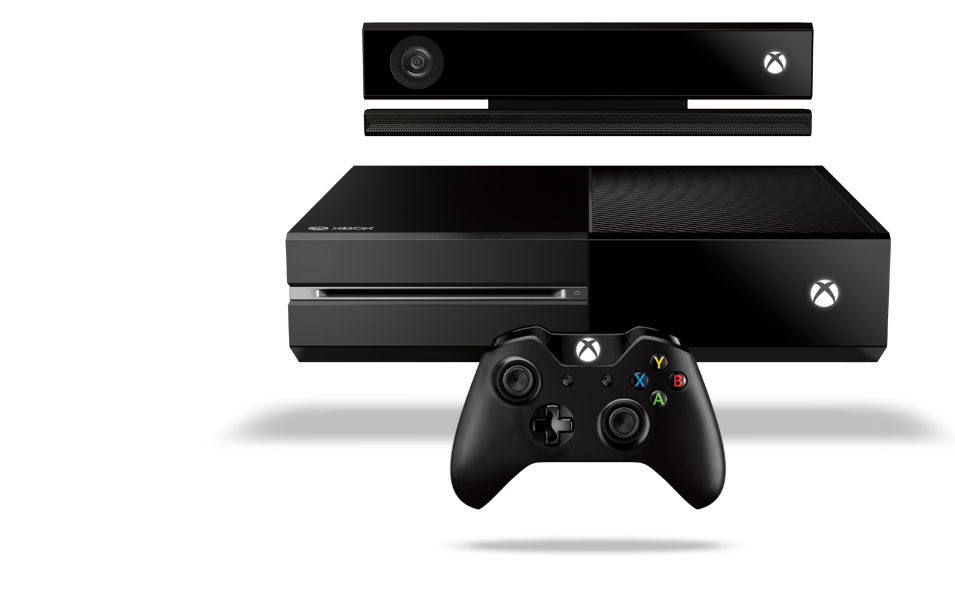
Xbox One announced

Xbox One announced

In case you missed the big news yesterday, Microsoft announced its next generation gaming console called Xbox One. It’s to be an all-in-one entertainment console with a new Kinect sensor, controller and a lot of entertainment options. Oh, and new games of course. For more details, check out the Meet Xbox One page.

Thursday, April 18, 2013

New Updates For Windows 8 Bing Apps

New Updates For Windows 8 Bing Apps

Source :- BING BLOGS

Back in October Microsoft launched six Bing Apps for Windows 8 including News, Finance, Weather, Sports, Maps and Travel to help you explore your world with a set of immersive vertical experiences.  The apps were designed from the ground up to embrace speed and touch providing you with a fast, fluid and consistent way to delve into your interests and get things done.

Starting today they are rolling out a significant set of updates across the apps that make it easier to customize and personalize them to best suit your needs. Let’s take a look at what’s new:

News– Interested in politics, but not very interested in entertainment? Or the other way around? Now you can customize the Bing News app to keep tabs on specific story categories, topics, or news sources that matter to you. Plus, we’re now supporting RSS feeds and offline reading so you can make the news truly your own and take it with you.
News - 4162013
Maps– With more features to help you find the best the way to get there faster, the Bing Maps app now supports improved driving, transit and walking directions, as well as up-to-the minute traffic incidents notifications including construction and accidents.  Want a more convenient way to save the places you visit the most often? Save common places as favorites or pin them to your start screen so that they roam across your Windows 8 devices.
Maps_06
Finance: Keep tabs on your portfolio and gauge performance of your stocks at a glance with the Bing Finance app which now includes an updated watch-list, real-time US stock updates and customizable interactive charts. 
Finance - 4162013
Sports– From in-game NBA statistics to Chinese Super League soccer results, the Bing Sports app is a one-stop shop to keep up with your favorite team. We are adding 29 additional sports leagues, with a total of 65 covering Soccer, American Football, Basketball, Rugby, Cricket, Tennis, Motor Sports, Baseball, Ice Hockey and Golf.
Sports 1
Travel: Now with additional travel content from Lonely Planet, Frommer’s and Fodor’s, the Bing Travel app is the best place to plan your next vacation. Check out attractions, restaurants and activities, including huge photos and 3D panoramas. Book flights and hotels directly within the app filtering by price, amenities and more.
Travel 1
Weather* – Want to know the forecast 100 miles west in 4 hours? Now you can stay a step ahead with dynamically moving weather maps for your city or region in a number of categories including satellite, temperature, precipitation, cloud cover and radar.  Also get weather conditions at ski resorts in 24 countries around the world.
Weather - 4162013
Whether you’re looking for news from your favorite source, conditions at a nearby ski resort, or highlights from last night’s Scottish Premier League matches, the Bing Apps for Windows 8 are there to help you find what you are looking for and quickly get things done. 
To make sure you have the latest versions of the Bing Apps, visit the Windows Store from your Windows 8 device and click on the text notification for updates in the upper-right of the screen.  From there, select the Bing Apps and hit ‘Install Updates’.
Start Screen 5
Installing Apps 1
- The Bing Team